10. Scheduled Imports
Automate recurring metadata syncs so your catalog stays up to date without any manual work.
Scheduled Imports (Data Management → Scheduled Imports) let you define recurring jobs that automatically re-import metadata from a registered connection on a fixed cadence. Each run applies a smart merge to the catalog: new tables are created, existing ones are updated with the latest column structure, and assets that disappear from the source are left intact — never deleted.
10.1 Creating a schedule
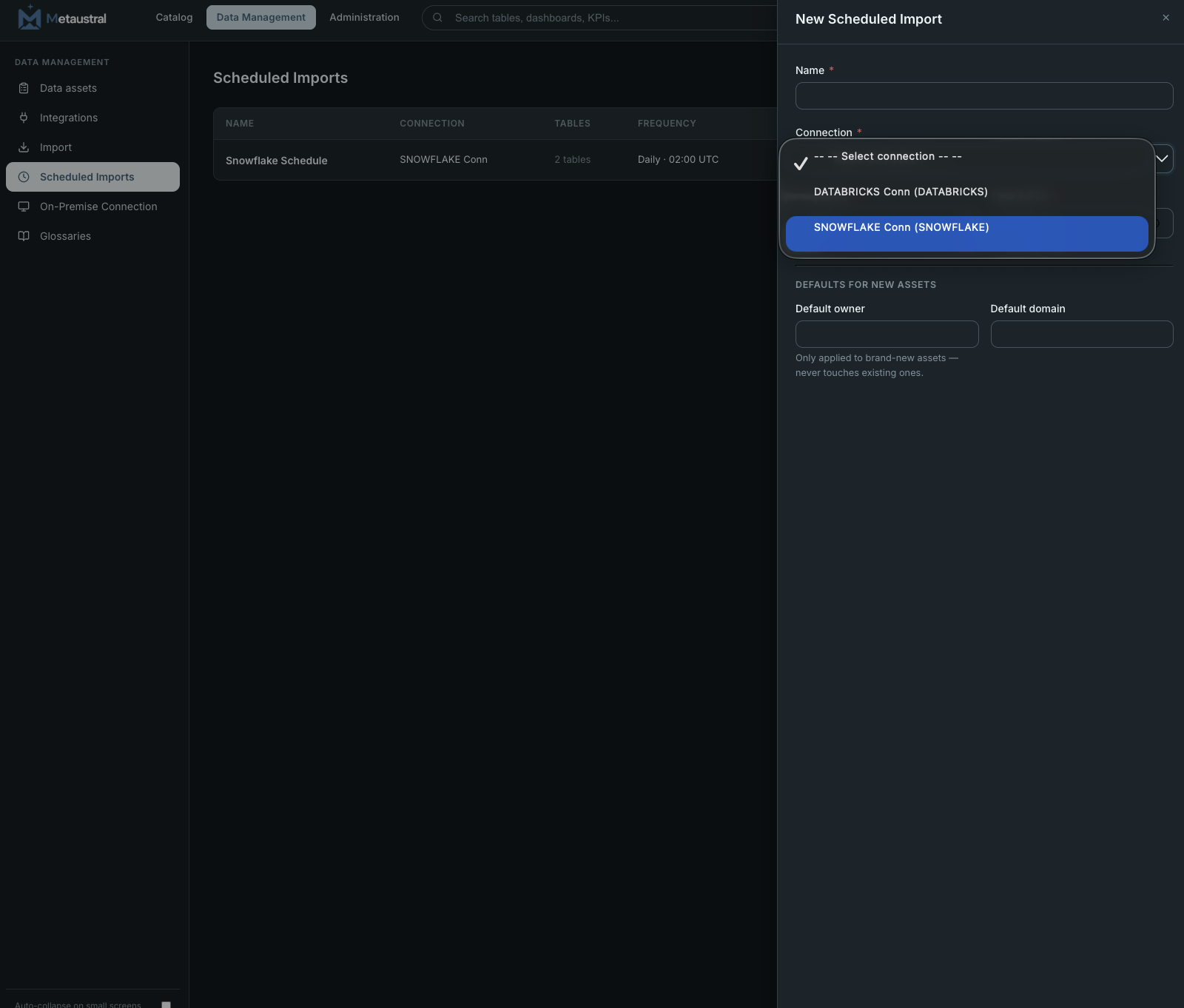
Click + New schedule in the top-right corner. The creation form asks for the following:
- Name — a descriptive label for this schedule (e.g. "Snowflake Daily Sync").
- Connection — the registered integration to sync from. Only connections saved in Integrations appear in the list.
- Tables — select which specific tables to include in the scheduled sync. Only those tables will be touched on each run.
- Frequency — how often the job runs: Daily, Weekly (choose a day of the week), or Monthly (choose a day of the month).
- Run time — the UTC time at which the job fires (e.g. 02:00 UTC).
- Default owner / Default domain (optional) — values applied automatically to brand-new assets created by the schedule. Never modifies existing assets.
10.2 Managing schedules
Each schedule appears as a row in the Scheduled Imports table with the following columns: Name, Connection, Tables (count), Frequency, Last run, and Status. From each row you can:
- Pause / Resume — toggle the schedule on or off without deleting it. A paused schedule is skipped by the scheduler but keeps its configuration and history.
- Run now — trigger an immediate manual run outside the regular schedule. The run is logged in the history with the trigger type "Manual".
- Edit — update the name, connection, tables, frequency, run time, or default values.
- Delete — remove the schedule permanently.
10.3 Run history
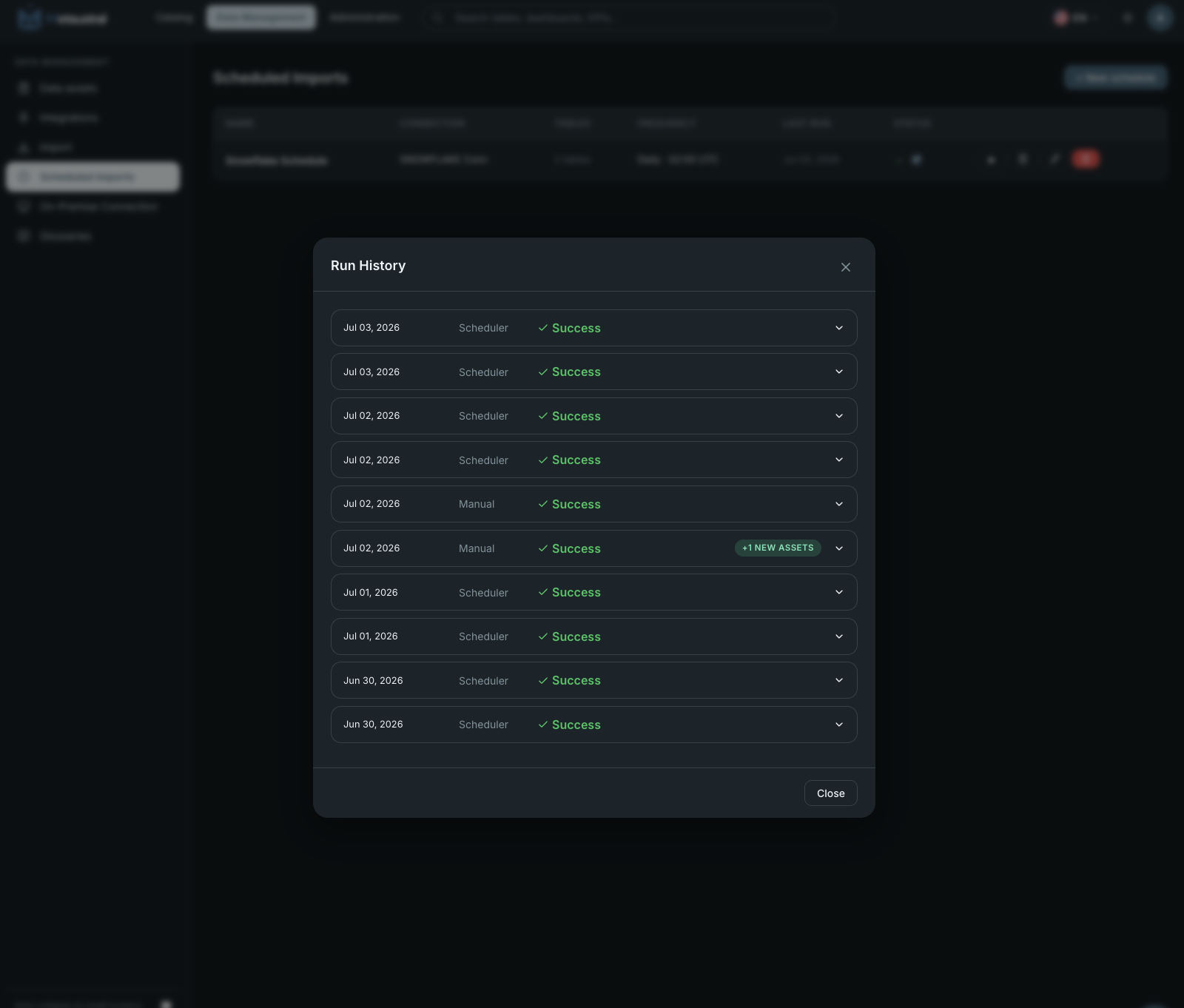
Click the history icon on any schedule row to open its Run History. Each entry shows the date and time of the run, who triggered it (Scheduler for automatic runs, Manual for on-demand runs), and the result (Success or an error message). When a run creates new assets that weren't in the catalog before, the entry is highlighted with a +N New Assets badge.