8. Integrations
Connect your databases and data sources to Metaustral so the platform can automatically discover and import metadata into the catalog.
8.1 What is the Integrations panel?
The Integrations panel (under Data Management in the left sidebar) is where you register and manage all your external data source connections. Each connection stores the credentials and endpoint needed for Metaustral to reach your database or file source. Once a connection is configured and tested, it becomes available in the Import flow for automatic metadata discovery and in Scheduled Imports for recurring sync jobs.
8.2 Supported sources
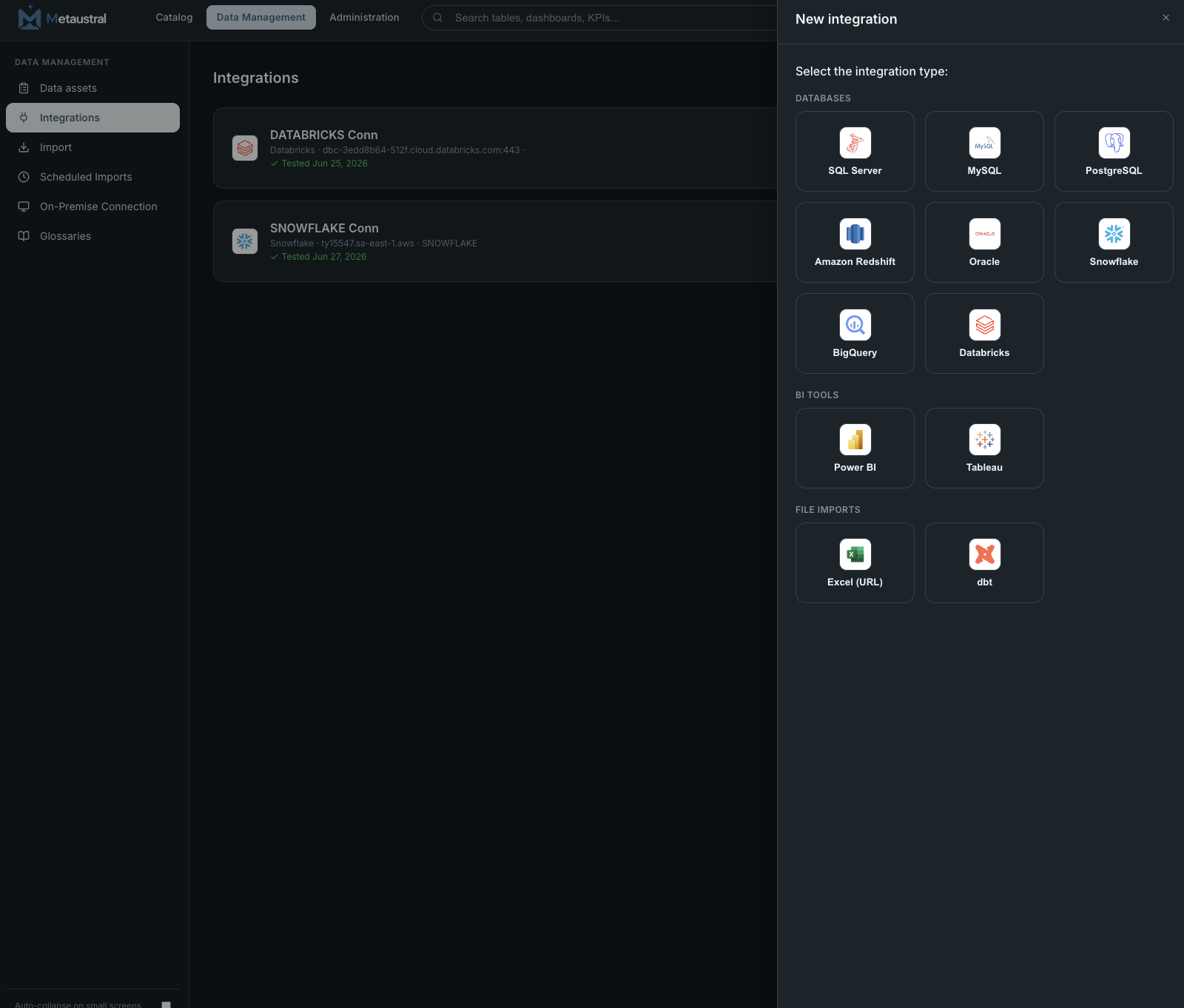
Metaustral supports three categories of connection:
| Category | Supported sources |
|---|---|
| Databases | SQL Server, PostgreSQL, MySQL, Oracle, Snowflake, BigQuery, Databricks, AWS Redshift |
| BI Tools | Power BI, Tableau |
| File sources (URL) | Excel spreadsheet (.xlsx via URL), dbt manifest (manifest.json via URL) |
8.3 Adding a connection
Click + New connection in the top-right corner of the Integrations panel. The form adapts to the engine type you select, showing only the fields relevant to that source. Common fields across all database engines:
- Name — a display label you choose (e.g. "Production DWH", "Analytics MySQL").
- Host / Server — the hostname or IP address of the database server.
- Port — pre-filled with the default port for the selected engine; change if needed.
- Database — the database name to connect to.
- Username / Password — credentials used to authenticate. Passwords are encrypted with Fernet before being stored — they are never saved in plain text.
- Schema (optional) — limits discovery to a specific schema instead of all accessible schemas.
Cloud warehouse engines (Snowflake, BigQuery, Databricks) have additional fields such as warehouse, role, HTTP path, or service account credentials depending on the engine.
8.4 Testing a connection
Before saving, use the Test connection button inside the form to verify that Metaustral can reach the server with the provided credentials. The test result is displayed inline — a green confirmation means the connection is ready to use, a red error shows the exact failure reason. After saving, the Test action on each connection card repeats this check at any time without re-opening the edit form.
8.5 What connections unlock
A configured connection is a prerequisite for three features:
- Automatic metadata discovery (Import → From a connection) — browse the available schemas and tables, select what to import, and create catalog assets with columns and data types in one click.
- Scheduled Imports — define a recurring cron schedule so Metaustral automatically re-discovers and syncs metadata changes from the source on a daily, weekly, or custom interval.
- On-Premise Agent (all plans) — databases inside private networks are connected via the Metaustral Agent desktop app, which uses Transfer Connections to push only metadata to the cloud securely, without exposing the database to the internet.