5. Playbooks
Document the business processes, rules, and context that connect your technical data assets.
5.1 What is a Playbook?
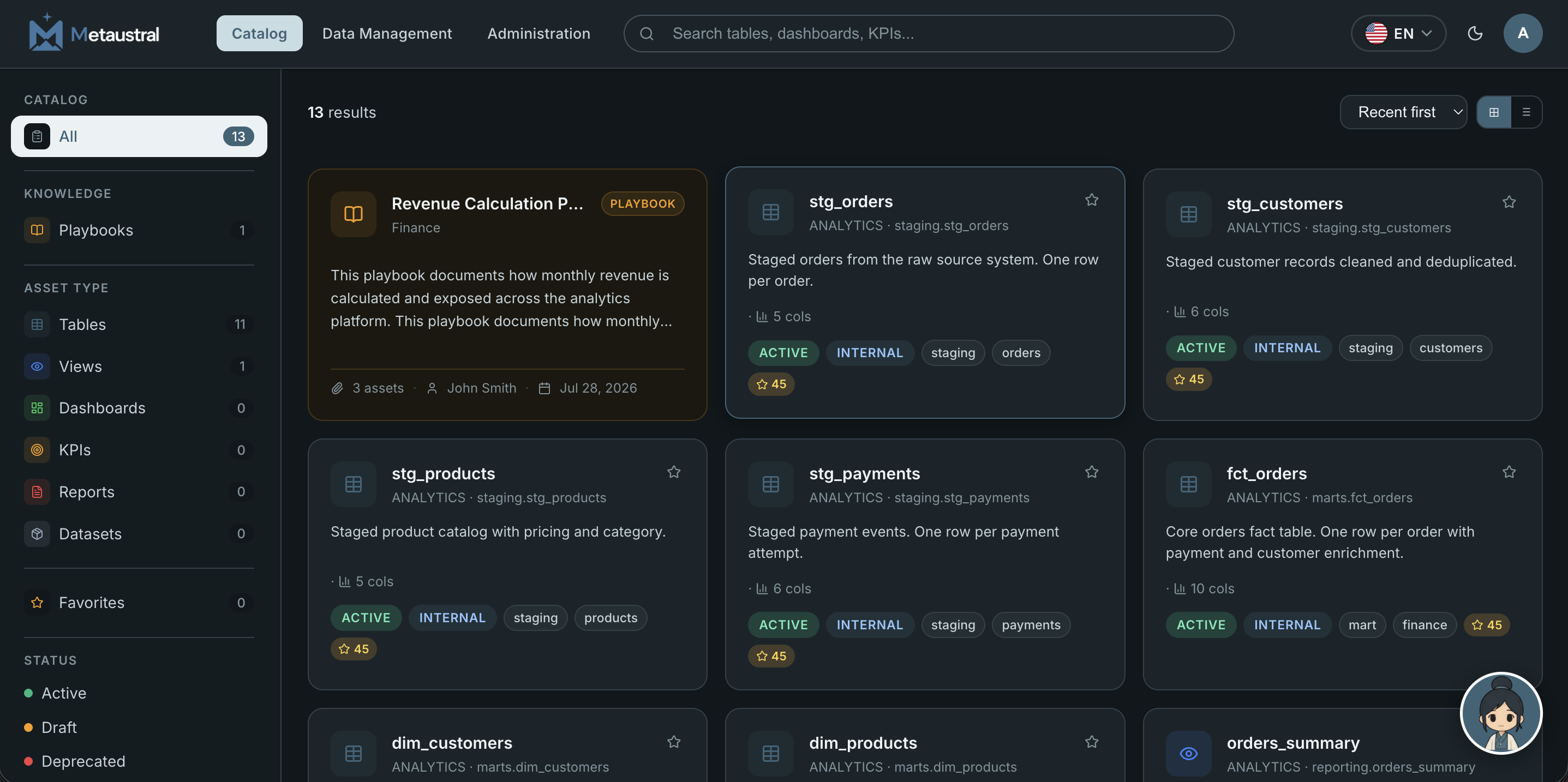
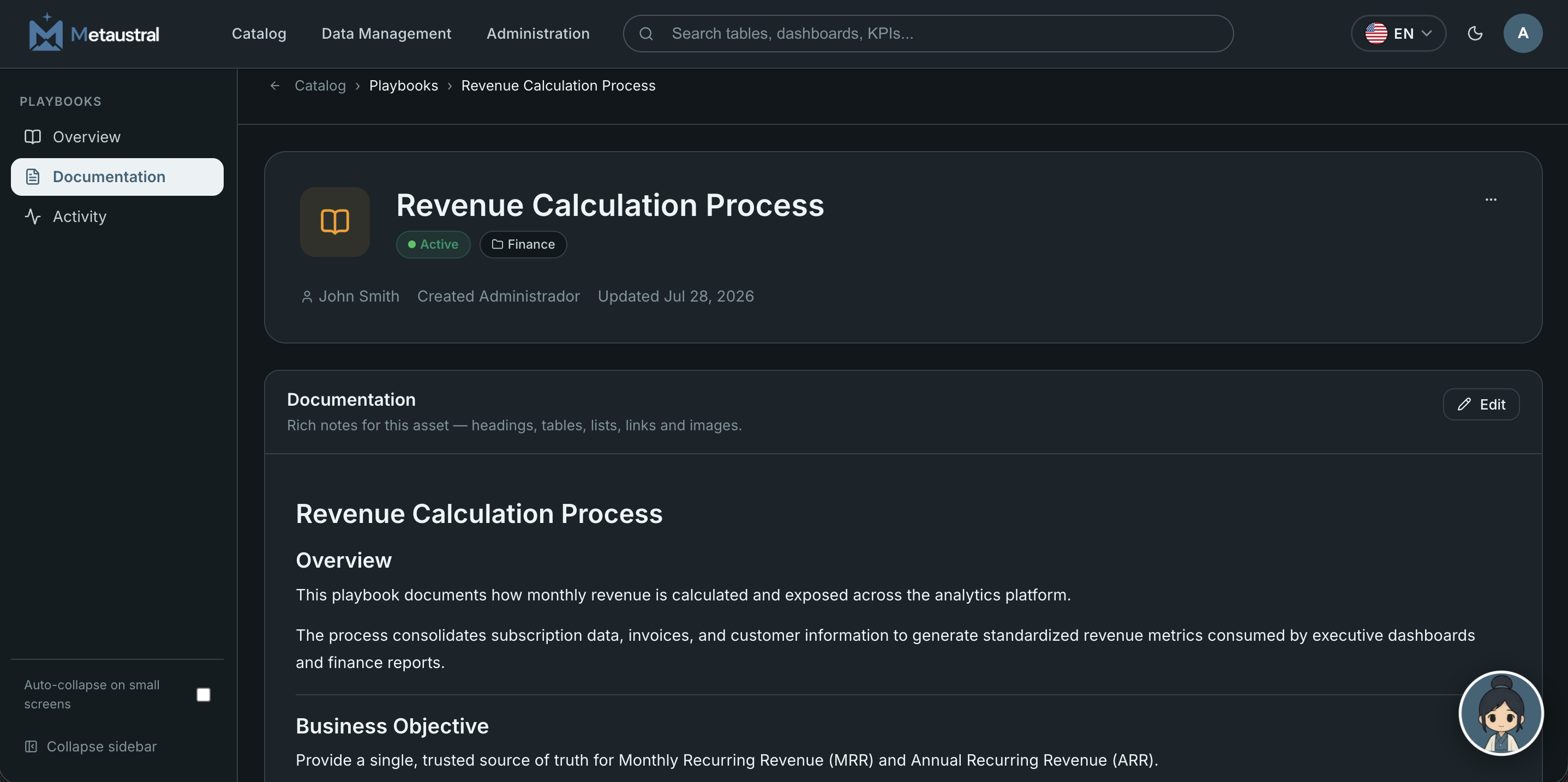
A Playbook is a long-form knowledge document that lives alongside your data assets in Metaustral. While data assets (tables, dashboards, KPIs) describe the technical layer — what the data is — Playbooks describe the business layer: how it should be used, why it was built, and what processes or rules govern it.
Typical Playbook use cases:
- Document a business process (e.g. "How monthly revenue is calculated")
- Capture business rules tied to specific KPIs or reports
- Write runbooks for data pipelines — what to do when a job fails
- Explain the context and ownership behind a domain or data product
- Onboard new team members onto how data flows through your organization
5.2 Properties
Every Playbook has the following metadata fields:
| Field | Description | Required |
|---|---|---|
| Title | Name of the Playbook | Yes |
| Description | Short summary shown in catalog cards | No |
| Status | draft · active · archived |
Yes (default: draft) |
| Category | Business grouping (e.g. Finance, Operations) | No |
| Owner | Free-text name of the person or team responsible | No |
| Domain | Business area the Playbook belongs to | No |
| Tags | Free-form labels for search and filtering | No |
Properties can be edited inline from the Data Assets table in Data Management or from the Overview tab inside the Playbook page itself.
5.3 Writing Content
The main body of a Playbook is a free-form Markdown document. Switch to the Content tab inside the Playbook page to open the editor. The editor supports:
- Headings (
#,##,###) - Bold and italic (
**bold**,*italic*) - Bullet and numbered lists
- Code blocks (fenced with
```) - Tables, blockquotes, and horizontal rules
- Inline links (
[text](url))
Content is saved automatically as you type. A table of contents is auto-generated from your headings and displayed in the right sidebar of the Playbook page for easy navigation.
5.4 Linking to Data Assets
A Playbook can be linked to one or more data assets from your catalog. This creates a bi-directional connection: the Playbook references the assets it governs, and each linked asset's detail page shows which Playbooks reference it.
To link assets, open the Playbook page and go to the Linked Assets tab. From there you can search and add any catalog asset. Linked assets are shown in the Playbook card in the catalog and in the quick-view panel.
5.5 Access Control
| Action | Viewer | Editor | Admin |
|---|---|---|---|
| View Playbooks in catalog | ✓ | ✓ | ✓ |
| Read Playbook content & properties | ✓ | ✓ | ✓ |
| Create a new Playbook | — | ✓ | ✓ |
| Edit content, properties & tags | — | ✓ | ✓ |
| Link / unlink data assets | — | ✓ | ✓ |
| Delete a Playbook | — | ✓ | ✓ |
Playbooks are visible to all users in the tenant, including Viewers. Only Editors and above can create, edit, or delete them. Playbook management (bulk operations, inline editing) is accessible from the Data Assets tab in Data Management.